Friday, November 12, 2010

Creating a SandBox solution in SharePoint 2010

The Sandbox solution is newly added in SharePoint 2010, and it is very useful particularly for the Administrators to track each of the custom development object. 


Now, the administrator can monitor the performance of the custom application and that can be removed if more server resources are consumed. Another important thing is, the Sandbox solution run on a separate process thread SPUserCodes. This will stop taking SharePoint resources already using W3WP process.


For every site, there is a solution gallery, where already installed sandbox solutions are present.


Steps for creating the solution:


1) Create a blank solution in VS 2010, and specify the site URL and select "Sandbox solution"


2) Add a webpart, by click on project -> New Items
Please Note, the Visual Webpart is not supported in a Sandbox solution.


3) Write you custom codes for your webpart in the "CreateChildControl" method.


4) Build the solution and locate the WSP file in the Bin folder.


5) Now, open Power Shell and execute these commands for adding and installing the solution.


Add-SPUserSolution -LiteralPath "Physical path to WSP" -Site "Your site Url"


Install-SPUserSolution -Identity "WSP name" -Site "Your site url"


Remember: Run the Power Shell as an administrator.

Friday, November 5, 2010

Static Navigation Menu on a Site Collection

Here, I am trying to change the built-in top navigation menu with a custom made menu. These menu items are static in nature and controlled from a XML file. 


These are the steps need to be followed:


1) Create a XML file and save the file as .sitemap


< ?xml version="1.0" encoding="utf-8" ? >
< siteMap >
  < siteMapNode title="Company" url="" >
    < siteMapNode title="Profile" >
      < siteMapNode title="About Us" url="/Default.aspx" >
        < siteMapNode title="History" url="/division1/division1a/Default.aspx" >
          < siteMapNode title="Management" url="/division1/division2a/Default.aspx"/ >
        < /siteMapNode >
        < siteMapNode title="News" url="/divi/division3a/Default.aspx" >
          < siteMapNode title="Media" url="/dion1/division3a/Default.aspx"/ >
        < /siteMapNode >
      < /siteMapNode >
    < /siteMapNode >
    < siteMapNode title="Interests" >
      < siteMapNode title="Careers" url="/division1/Home.aspx" >
        < siteMapNode title="Media" url="/divisi/division1a/Default.aspx"/ >
        < siteMapNode title="News" url="/divis/division2a/Default.aspx"/ >
      < /siteMapNode >
    < /siteMapNode >
  < /siteMapNode >
< /siteMap >


2) Place the file in _app_bin directory
(eg: C:\Inetpub\wwwroot\wss\VirtualDirectories\555\_app_bin\mainmenu.sitemap)


3) Open the web.config file of the corresponding site
(eg c:\Inetpub\wwwroot\wss\VirtualDirectories\555)


4)  Look for the "< siteMap" tag, and under "< providers >" add the following entry: and save the file.


< add name="CustomXmlContentMapProvider" siteMapFile="_app_bin/CustomSiteMap.sitemap" type="Microsoft.SharePoint.Navigation.SPXmlContentMapProvider, Microsoft.SharePoint, Version=12.0.0.0, Culture=neutral, PublicKeyToken=71e9bce111e9429c" / >


5) Open the site on SharePoint Designer, and add the following inside a SharePoint:DelegateControl


     < asp:SiteMapDataSource
ShowStartingNode="true"
SiteMapProvider="CustomXmlContentMapProvider"
id="xmlSiteMap"
runat="server"/ >


6) Then look for "< SharePoint:AspMenu ID='TopNavigationMenu'
and change these:


DataSourceID="xmlSiteMap"
MaximumDynamicDisplayLevels="4" 


The MaximumDynamicDisplayLevel indicates up to how many level the menu will expand.

7) The final output will be look like this:


Thursday, October 21, 2010

Page become inactive after clicking on 'Export excel' on custom SharePoint page

Recently I faced an issue on a custom page developed on SharePoint. In this page I am showing a grid and there is a button for exporting the grid data to an excel sheet. The grid also have sorting and pagination functionalities.


After deploying the page, I learnt that, after click on 'Export to excel' link the rest of the control stops functioning. This means the data sorting and pagination links are inactive. Following codes are used for exporting:


    protected void lnkExportTop_Click(object sender, EventArgs e)
    {
        try
        {
            DataTable dtProjects = (DataTable)ViewState["Projects"];
            dtProjects.DefaultView.Sort = "MPP_Name Desc";
            gvMerge.DataSource = dtProjects.DefaultView;
            gvMerge.AllowPaging = false;
            gvMerge.DataBind();


            HttpContext.Current.Response.Clear();
            HttpContext.Current.Response.AddHeader(
                "content-disposition", "attachment; filename=ProjectDashboard.xls" );
            HttpContext.Current.Response.ContentType = "application/ms-excel";

            using (StringWriter sw = new StringWriter())
            {
                using (HtmlTextWriter htw = new HtmlTextWriter(sw))
                {
                    //  Create a table to contain the grid
                    Table table = new Table();

                    //  include the gridline settings
                    table.GridLines = GridLines.Both;

                    //  add the header row to the table
                    if (gvMerge.HeaderRow != null)
                    {
                        PrepareControlForExport(gvMerge.HeaderRow);
                        table.Rows.Add(gvMerge.HeaderRow);
                    }

                    //  add each of the data rows to the table
                    foreach (GridViewRow row in gvMerge.Rows)
                    {
                        table.Rows.Add(row);
                    }

                    //  render the table into the htmlwriter
                    table.RenderControl(htw);

                    //  render the htmlwriter into the response
                    HttpContext.Current.Response.Write(sw.ToString());
                    HttpContext.Current.Response.End();
                }
            }
        }
        catch (Exception ex)
        {
            HandleError("Export to excel ", ex.ToString());
        }
    }

    private void PrepareControlForExport(Control control)
    {
        for (int i = 0; i < control.Controls.Count; i++)
        {
            Control current = control.Controls[i];
            if (current is LinkButton)
            {
                control.Controls.Remove(current);
                control.Controls.AddAt(i, new LiteralControl((current as LinkButton).Text));
            }
            else if (current is ImageButton)
            {
                control.Controls.Remove(current);
                control.Controls.AddAt(i, new LiteralControl((current as ImageButton).AlternateText));
            }
            else if (current is HyperLink)
            {
                control.Controls.Remove(current);
                control.Controls.AddAt(i, new LiteralControl((current as HyperLink).Text));
            }
            else if (current is Image)
            {
                control.Controls.Remove(current);
            }
          
            if (current.HasControls())
            {
                PrepareControlForExport(current);
            }
        }
    }


Initially I thought that there is some problems with my code. But after several debugging cycle I concluded that my code is working fine.


After some researching on the net, I found that SharePoint security model basically causing the problem. Some client scripts need to call on the OnClilentClick method of the export link button.


< asp:LinkButton ID="lnkExportBottom" runat="server" Text="Export to excel" OnClientClick="_spFormOnSubmitCalled = false;_spSuppressFormOnSubmitWrapper=true;"
OnClick="lnkExportTop_Click"  / >


Hiding left blank space of Application.master in SharePoint

While developing on SharePoint once I required to use the built-in Application.master page. This master page is attached to my custom aspx page. After deployed the aspx page I noticed that, there is some blank space on the left portion of the page.

I used the following scripts to hide the left unused space and finally the page is able to use more screen space.


    < script language="javascript" type="text/javascript" >
        document.getElementById('LeftNavigationAreaCell').style.display = 'none';
        document.getElementById('TitleAreaImageCell').style.display = 'none';
        document.getElementById('onetidMainBodyPadding').style.display = 'none';
    < /script >

After adding this script the finally looks like this:


Thursday, September 2, 2010

Matching lookup column values using CAML query

To fetch items from a list based on a lookup column value, I tried the following query first.


< Query >
  < Where >
    < Eq >
        < FieldRef Name="Roadmap_x0020_Address" / >
        < Value Type="Lookup" > xyz < /Value >
   < /Eq >
 < /Where >
< /Query >


But, have not got the desired result because this query matches on the title of a lookup column, there there are cases where we can have a duplicate title. As we know that the lookup value structure is 12;#xyz, Instead of fetching by name we should look by ID


To fetch information by ID, we need use this switch LookupId=”TRUE”


< Query >

  < Where >
    < Eq >
        < FieldRef Name="Roadmap_x0020_Address" LookupId=”TRUE” / >
        < Value Type="Lookup" >12 < /Value >
   < /Eq >
 < /Where >
< /Query >

Another thing to remember is, the "FieldRef Name" we are using should be the internal name of a SharePoint column.

Friday, August 20, 2010

Programmatically complete a Workflow in SharePoint

Recently I got a requirement that some of the running workflow in a list need to be closed. I received the clear instruction that, those workflow should not be canceled and status should say 'Approved'. Basically there are some old items in the SharePoint list and these items have a running workflow associated with it. Since those list items are old, there is no point to go through a approval cycle.


After doing a impact analysis, I realized that the workflow status is depending on a task. Therefore if I close the task the associated workflow will complete automatically.


I tried the following piece of code. Here I am trying to update the task associated with the workflow programmatically.


But, to my surprise this is not working. Meaning after completing the task, the status of the workflow does not changed. The OnTaskChanged() method not called within the workflow and the status still showing 'In Progress'. I have to look for an alternative approach.


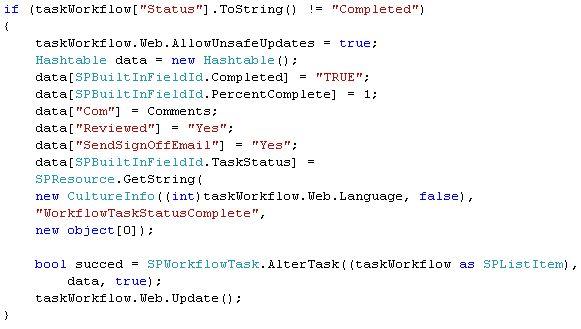
Finally, I found that the AlterTask of SPWorkflow class is correct way to update a workflow task. The following piece of code solved the purpose.


Wednesday, August 11, 2010

Changing domain password Programmatically

I was writing a web utility to change the domain password of the user. Here, the user required to enter the current password and the new password.


First error I was encountered - "The password does not meet the password policy requirements. Check the minimum password length, password complexity and password history requirements. (Exception from HRESULT: 0x800708C5)"


Initially I thought that, there is a problem in password strength, so I try may combinations to create the most complex password in the world! But getting the same error.


After doing some research on the internet I found that, "Minimum Password Age" setting needs to set to 0, to allow users set the password many times a day. The default value is 1.


Following are the code snippet used for changing password:

               string Username = strAccountName.Substring(strAccountName.LastIndexOf(@"\") + 1); //Getting account name from the parent application, "Rocky\\Soumyendra"
                string newpwd = txtNewPass.Text;
                string oldpwd = txtOldPass.Text;

                SPSecurity.RunWithElevatedPrivileges(delegate
                {
                    PrincipalContext principalContext = null;
                    principalContext = new PrincipalContext(ContextType.Domain, domain);
                 
                    UserPrincipal user = UserPrincipal.FindByIdentity(principalContext, Username);

                    if (user != null)
                    {

                        user.ChangePassword(oldpwd, newpwd);
                        user.Enabled = true;//By default User is Disabled in Domain
                        user.Save();

                    }
                });
                SendEmail(newpwd);