Recently I faced an issue on a custom page developed on SharePoint. In this page I am showing a grid and there is a button for exporting the grid data to an excel sheet. The grid also have sorting and pagination functionalities.
After deploying the page, I learnt that, after click on 'Export to excel' link the rest of the control stops functioning. This means the data sorting and pagination links are inactive. Following codes are used for exporting:
protected void lnkExportTop_Click(object sender, EventArgs e)
{
try
{
DataTable dtProjects = (DataTable)ViewState["Projects"];
dtProjects.DefaultView.Sort = "MPP_Name Desc";
gvMerge.DataSource = dtProjects.DefaultView;
gvMerge.AllowPaging = false;
gvMerge.DataBind();
HttpContext.Current.Response.Clear();
HttpContext.Current.Response.AddHeader(
"content-disposition", "attachment; filename=ProjectDashboard.xls" );
HttpContext.Current.Response.ContentType = "application/ms-excel";
using (StringWriter sw = new StringWriter())
{
using (HtmlTextWriter htw = new HtmlTextWriter(sw))
{
// Create a table to contain the grid
Table table = new Table();
// include the gridline settings
table.GridLines = GridLines.Both;
// add the header row to the table
if (gvMerge.HeaderRow != null)
{
PrepareControlForExport(gvMerge.HeaderRow);
table.Rows.Add(gvMerge.HeaderRow);
}
// add each of the data rows to the table
foreach (GridViewRow row in gvMerge.Rows)
{
table.Rows.Add(row);
}
// render the table into the htmlwriter
table.RenderControl(htw);
// render the htmlwriter into the response
HttpContext.Current.Response.Write(sw.ToString());
HttpContext.Current.Response.End();
}
}
}
catch (Exception ex)
{
HandleError("Export to excel ", ex.ToString());
}
}
private void PrepareControlForExport(Control control)
{
for (int i = 0; i < control.Controls.Count; i++)
{
Control current = control.Controls[i];
if (current is LinkButton)
{
control.Controls.Remove(current);
control.Controls.AddAt(i, new LiteralControl((current as LinkButton).Text));
}
else if (current is ImageButton)
{
control.Controls.Remove(current);
control.Controls.AddAt(i, new LiteralControl((current as ImageButton).AlternateText));
}
else if (current is HyperLink)
{
control.Controls.Remove(current);
control.Controls.AddAt(i, new LiteralControl((current as HyperLink).Text));
}
else if (current is Image)
{
control.Controls.Remove(current);
}
if (current.HasControls())
{
PrepareControlForExport(current);
}
}
}
Initially I thought that there is some problems with my code. But after several debugging cycle I concluded that my code is working fine.
After some researching on the net, I found that SharePoint security model basically causing the problem. Some client scripts need to call on the OnClilentClick method of the export link button.
< asp:LinkButton ID="lnkExportBottom" runat="server" Text="Export to excel" OnClientClick="_spFormOnSubmitCalled = false;_spSuppressFormOnSubmitWrapper=true;"
OnClick="lnkExportTop_Click" / >
Thursday, October 21, 2010


Hiding left blank space of Application.master in SharePoint
While developing on SharePoint once I required to use the built-in Application.master page. This master page is attached to my custom aspx page. After deployed the aspx page I noticed that, there is some blank space on the left portion of the page.

I used the following scripts to hide the left unused space and finally the page is able to use more screen space.
< script language="javascript" type="text/javascript" >
document.getElementById('LeftNavigationAreaCell').style.display = 'none';
document.getElementById('TitleAreaImageCell').style.display = 'none';
document.getElementById('onetidMainBodyPadding').style.display = 'none';
< /script >
After adding this script the finally looks like this:

Thursday, September 2, 2010
Matching lookup column values using CAML query
To fetch items from a list based on a lookup column value, I tried the following query first.
< Query >
< Where >
< Eq >
< FieldRef Name="Roadmap_x0020_Address" / >
< Value Type="Lookup" > xyz < /Value >
< /Eq >
< /Where >
< /Query >
But, have not got the desired result because this query matches on the title of a lookup column, there there are cases where we can have a duplicate title. As we know that the lookup value structure is 12;#xyz, Instead of fetching by name we should look by ID
To fetch information by ID, we need use this switch LookupId=”TRUE”
< Where >
< Eq >
< FieldRef Name="Roadmap_x0020_Address" LookupId=”TRUE” / >
< Value Type="Lookup" >12 < /Value >
< /Eq >
< /Where >
< /Query >
< Query >
< Where >
< Eq >
< FieldRef Name="Roadmap_x0020_Address" / >
< Value Type="Lookup" > xyz < /Value >
< /Eq >
< /Where >
< /Query >
But, have not got the desired result because this query matches on the title of a lookup column, there there are cases where we can have a duplicate title. As we know that the lookup value structure is 12;#xyz, Instead of fetching by name we should look by ID
To fetch information by ID, we need use this switch LookupId=”TRUE”
< Query >
< Where >
< Eq >
< FieldRef Name="Roadmap_x0020_Address" LookupId=”TRUE” / >
< Value Type="Lookup" >12 < /Value >
< /Eq >
< /Where >
< /Query >
Another thing to remember is, the "FieldRef Name" we are using should be the internal name of a SharePoint column.
Friday, August 20, 2010
Programmatically complete a Workflow in SharePoint
Recently I got a requirement that some of the running workflow in a list need to be closed. I received the clear instruction that, those workflow should not be canceled and status should say 'Approved'. Basically there are some old items in the SharePoint list and these items have a running workflow associated with it. Since those list items are old, there is no point to go through a approval cycle.
After doing a impact analysis, I realized that the workflow status is depending on a task. Therefore if I close the task the associated workflow will complete automatically.
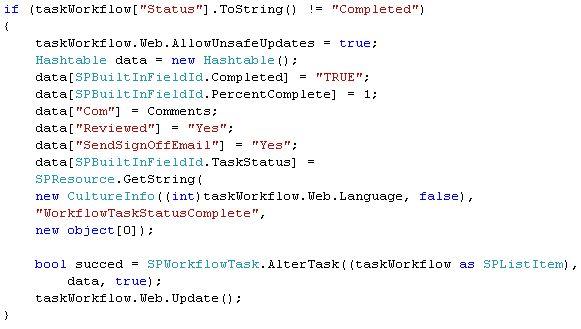
I tried the following piece of code. Here I am trying to update the task associated with the workflow programmatically.

But, to my surprise this is not working. Meaning after completing the task, the status of the workflow does not changed. The OnTaskChanged() method not called within the workflow and the status still showing 'In Progress'. I have to look for an alternative approach.
Finally, I found that the AlterTask of SPWorkflow class is correct way to update a workflow task. The following piece of code solved the purpose.

After doing a impact analysis, I realized that the workflow status is depending on a task. Therefore if I close the task the associated workflow will complete automatically.
I tried the following piece of code. Here I am trying to update the task associated with the workflow programmatically.

But, to my surprise this is not working. Meaning after completing the task, the status of the workflow does not changed. The OnTaskChanged() method not called within the workflow and the status still showing 'In Progress'. I have to look for an alternative approach.
Finally, I found that the AlterTask of SPWorkflow class is correct way to update a workflow task. The following piece of code solved the purpose.
Wednesday, August 11, 2010
Changing domain password Programmatically
I was writing a web utility to change the domain password of the user. Here, the user required to enter the current password and the new password.
First error I was encountered - "The password does not meet the password policy requirements. Check the minimum password length, password complexity and password history requirements. (Exception from HRESULT: 0x800708C5)"
Initially I thought that, there is a problem in password strength, so I try may combinations to create the most complex password in the world! But getting the same error.
After doing some research on the internet I found that, "Minimum Password Age" setting needs to set to 0, to allow users set the password many times a day. The default value is 1.


First error I was encountered - "The password does not meet the password policy requirements. Check the minimum password length, password complexity and password history requirements. (Exception from HRESULT: 0x800708C5)"
Initially I thought that, there is a problem in password strength, so I try may combinations to create the most complex password in the world! But getting the same error.
After doing some research on the internet I found that, "Minimum Password Age" setting needs to set to 0, to allow users set the password many times a day. The default value is 1.


Following are the code snippet used for changing password:
string Username = strAccountName.Substring(strAccountName.LastIndexOf(@"\") + 1); //Getting account name from the parent application, "Rocky\\Soumyendra"
string newpwd = txtNewPass.Text;
string oldpwd = txtOldPass.Text;
SPSecurity.RunWithElevatedPrivileges(delegate
{
PrincipalContext principalContext = null;
principalContext = new PrincipalContext(ContextType.Domain, domain);
UserPrincipal user = UserPrincipal.FindByIdentity(principalContext, Username);
if (user != null)
{
user.ChangePassword(oldpwd, newpwd);
user.Enabled = true;//By default User is Disabled in Domain
user.Save();
}
});
SendEmail(newpwd);
Friday, July 30, 2010
Embedding YouTube video on a SharePoint site
On the particular day, Client requested to show a YouTube video on a SharePoint site. I did a quick research and followed these steps:
On the SharePoint Site, add a 'Content Editor Webpart'.

Next, choose 'Source Editor' from the right pane.
 Now, go back to the YouTube site and find the video you want to add on the SharePoint Site. There is an Embedded button on the YouTube site, click on that to get the Embedded codes.


Open the Source Editor, and paste the already copied text, Save, apply and OK.


That's all guys!!!
On the SharePoint Site, add a 'Content Editor Webpart'.

Next, choose 'Source Editor' from the right pane.


Now, Copy these embedded codes.

Open the Source Editor, and paste the already copied text, Save, apply and OK.


That's all guys!!!
Monday, July 26, 2010
Fixing issue "Your queue job CreateWssSite failed. Please contact your administrator for assistance"
While working on the Microsoft Project Server 2007, you might encounter an issue "Your queue job CreateWssSite failed. Please contact your administrator for assistance" This error shows in an email and normally sent to the Administrator.
The root cause of this error is, when you are publishing a Project from the Microsoft Project Professional, the Project Workspace URL is asked. There are several validation associated with this workspace URL, like Total length, invalid characters etc. Now, when you are trying to publish your project programmatically, the above mention error showed.
On the Project Server you can view the project workspace URL the following way:


Please use the following setting in the "Project Workspace Provisioning Settings". This setting will stop creating project workspace as soon as you published a project. Now user create the project workspace site manually if he got the permission.


The root cause of this error is, when you are publishing a Project from the Microsoft Project Professional, the Project Workspace URL is asked. There are several validation associated with this workspace URL, like Total length, invalid characters etc. Now, when you are trying to publish your project programmatically, the above mention error showed.
On the Project Server you can view the project workspace URL the following way:


Please use the following setting in the "Project Workspace Provisioning Settings". This setting will stop creating project workspace as soon as you published a project. Now user create the project workspace site manually if he got the permission.


Subscribe to:
Posts (Atom)